

How can we help you?
From your first listing to your next card design. Find clear steps, helpful screenshots and video guides.

Your guide to 7Eplates
5 guidesAccount & verificationHow to create an account
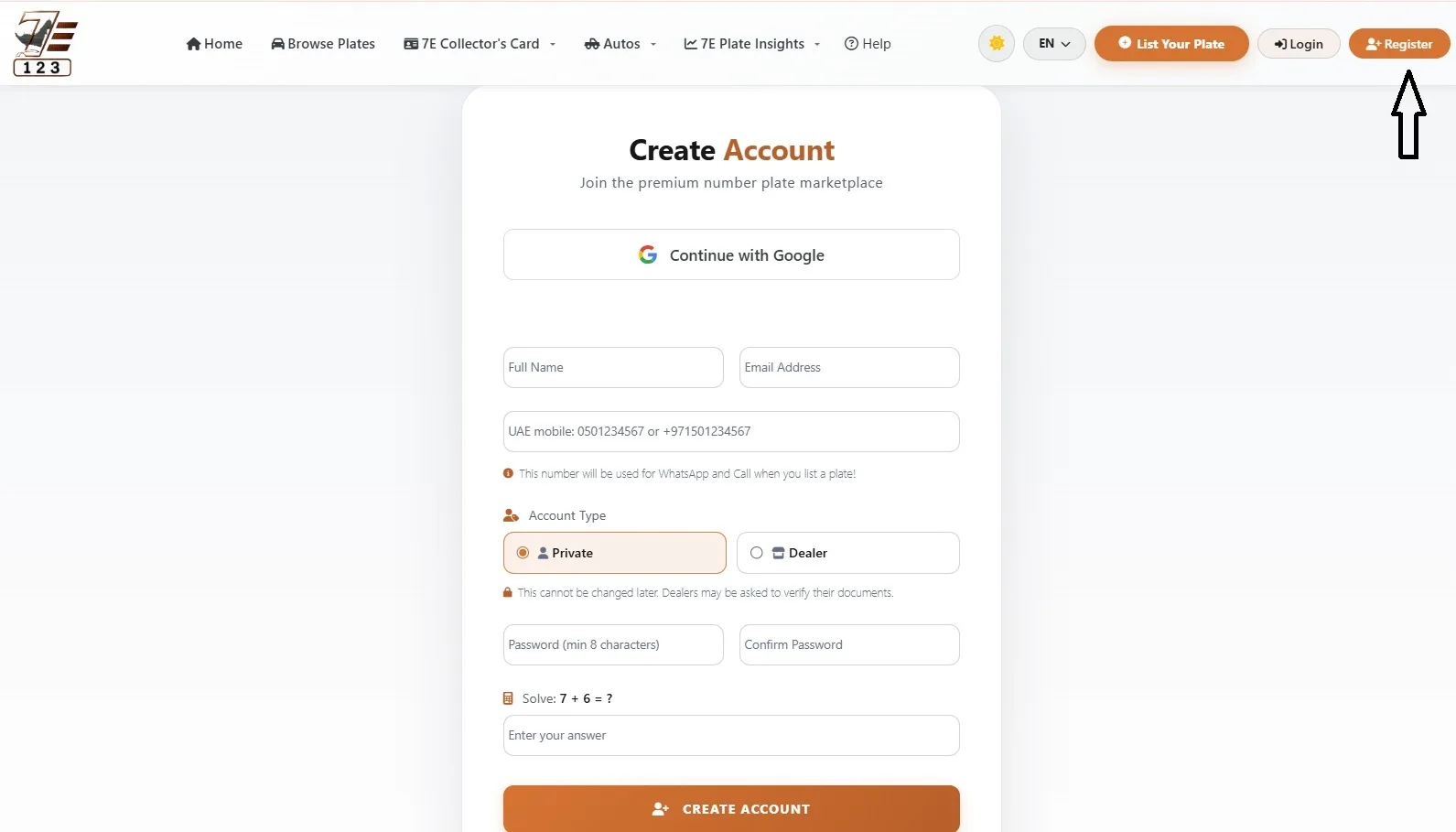
Register with your email address or Google. Video guide
- Open the website and choose Sign Up.
- Complete the registration fields, or choose Google to create your account.
- Follow the mobile verification instructions and enter the code you receive at your Whatsapp.
- If you register by email, open the activation email and follow the link.
- Sign in to your account. Check your spam folder if the activation email is missing.
Before posting a listing, your mobile number must be verified. Google registration does not remove this requirement.
ListingsHow to add a listing (single)
List a plate, vehicle or spare part. Video guide
- Sign in and open Add Listing from your account.
- Choose plate, vehicle or spare part.
- Enter the details carefully. For a plate, enter its emirate and number; you may leave the plate code undisclosed.
- Set your asking price, or select Call for Price where that option is available.
- Upload at least one photo for a vehicle or spare part. Each photo must be 2 MB or smaller.
- Choose a package, review the information and submit. Complete checkout if you selected a paid package.
Vehicle and spare-part listings need admin approval before appearing publicly. A new paid listing is not published until its payment succeeds.
ListingsHow to add plates in bulk
Bring a text table back from ChatGPT or Claude. Video guide
- Open the bulk plate option on Add Listing.
- Copy the supplied command without changing it.
- Send the command with your plate image to ChatGPT or Claude.
- Paste the resulting text table into the importer, or upload it as a text file.
- Review the emirate, code, number and price for every row. Correct unclear information and check availability.
- Select only the plates you want to list, up to 20 at a time.
- Choose each plate's package and follow the submission and payment steps.
Always check the imported data against your original image before submitting. You can select fewer rows than the number imported.
Cards & customisationHow to Use 7E Card inventory
Video guide
Cards & customisationHow to customise your card
Follow the Studio tutorials in light or dark theme. Video guide
- Open My 7E Card Inventory and choose a registered plate in your inventory.
- Open the Studio and select a card design.
- Select an element before changing its colour or settings.
- Adjust the available backgrounds, panels, frames and other design options.
- Review the preview, then save your design within your package allowance.
- Use Download to keep a copy of a saved design.
Watch the tutorial that matches your preferred theme. Collector's cards are for collectible, decorative and entertainment purposes, have no legal value, and do not prove ownership or plate entitlement.
No guides to show
Try another search or contact our team for help.
A question we haven’t answered?
Tell us what you are trying to do and where you need a hand.